

 ChatGPT is OpenAI’s assistant at chatgpt.com. MemoryPlugin gives it long-term memory that carries across your other AI tools, and lets you sync and search your ChatGPT chat history.
Set up
The browser extension is the recommended route. It works on the ChatGPT web app in any Chromium browser or Safari.1
Install the extension
Install the browser extension and sign in to your MemoryPlugin account.
2
Open ChatGPT
Go to chatgpt.com. A floating MemoryPlugin button appears on the page.
3
Activate for the chat
Click the button to inject memories from your selected bucket into the composer, then send your message. This also tells ChatGPT how to save new memories as you talk.
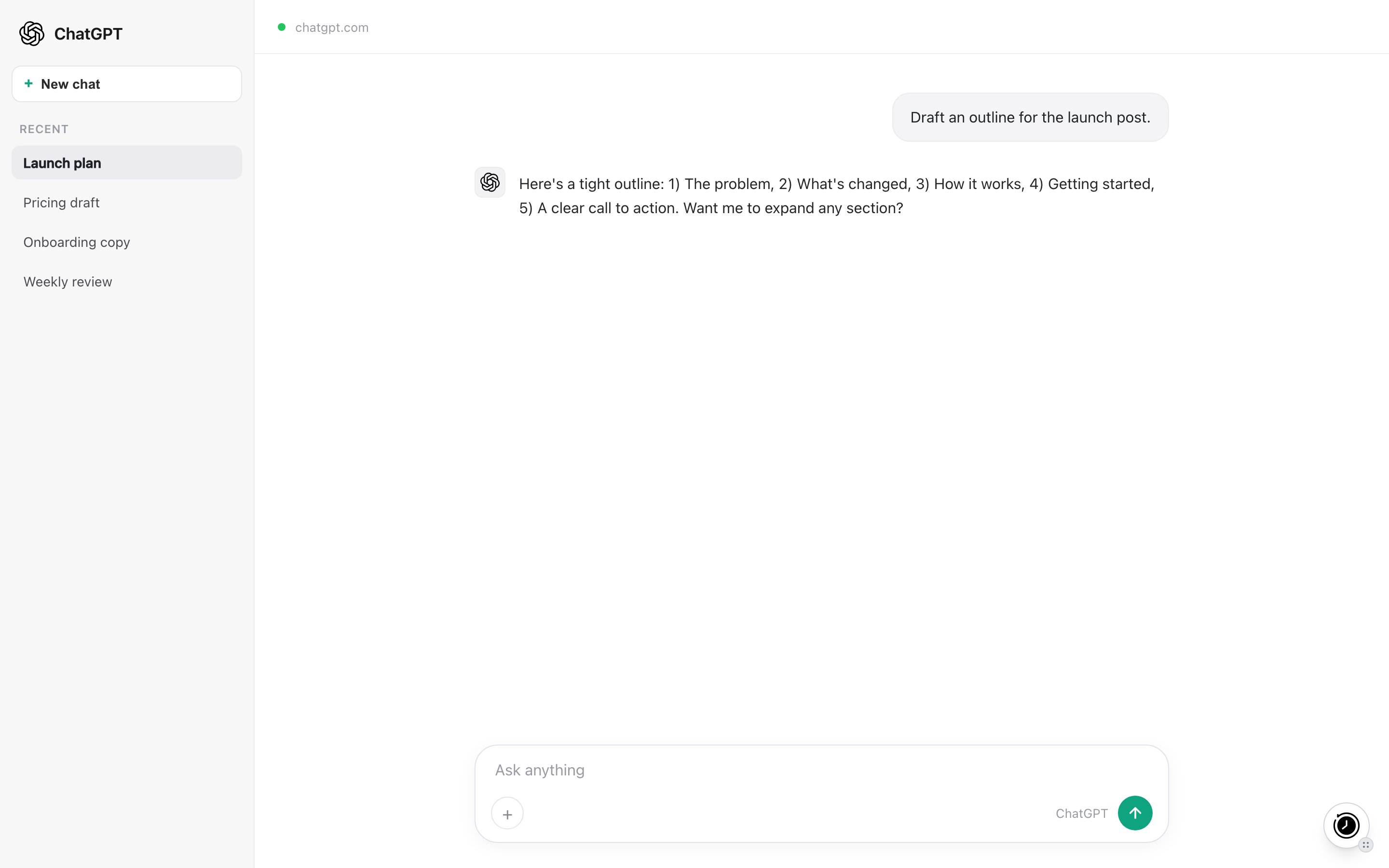
The MemoryPlugin floating button on chatgpt.com. Click it to inject memories or open the panel.
Custom GPT (alternative)
The MemoryPlugin Custom GPT loads your memories automatically, with no extension. It works on the ChatGPT web app and mobile app. To add memory to a GPT you build yourself, follow the Custom GPT Integration guide.What works here
This walkthrough covers both routes: the official Custom GPT (memory travels through GPT actions) and the browser extension on chatgpt.com (injection, auto-inject, AI-driven recall, and chat history sync).- Memory recall and save. Injected memories give ChatGPT context; new memories are saved back as you talk.
- Chat history sync. ChatGPT is one of the six platforms the extension can sync directly. New conversations are captured for search and recall across your tools. You can also upload a ChatGPT export file instead.
- Extract memory pill. Select text in a chat and click Extract memory to save that snippet.
- Import existing ChatGPT memories. Transfer the memories ChatGPT already stores about you into MemoryPlugin.
Import ChatGPT memories
1
Open memory management
In ChatGPT, go to Settings, then Personalization, then Manage memories.
2
Sync
Click the Sync Memories button marked with the MemoryPlugin logo.
3
Wait
Keep the tab open until the sync finishes. It runs in a few minutes and skips duplicates if you run it again.
Limitations
- The extension does not inject on its own by default. You click the button to activate a chat, or turn on Automatically add memories in new conversations in the extension settings (it injects after a 5-second countdown you can cancel).
- ChatGPT splits large history exports into multiple files (
conversations-001.json,conversations-002.json, and so on). Select all of them when you import.
Next steps
Browser Extension
Full setup and features
Import ChatGPT Memories
Transfer your existing memories
Custom GPT Integration
Add memory to your own GPT
Chat History
Import and search your conversations