

 Claude is Anthropic’s assistant at claude.ai. MemoryPlugin gives it long-term memory across your AI tools. Because Claude speaks MCP, the remote MCP server is the cleanest way to connect it.
Set up
Most people run both: the remote MCP server as the primary integration (Claude calls your memory tools itself), plus the browser extension to keep your Claude chats syncing into your history.1
Add the connector
Add MemoryPlugin as a connector in Claude using the remote MCP server URL. There is no install, and it works on desktop, mobile, and web.
2
Approve access
Sign in and approve when Claude prompts you. Your memories then load in new chats, including on the Claude mobile app.
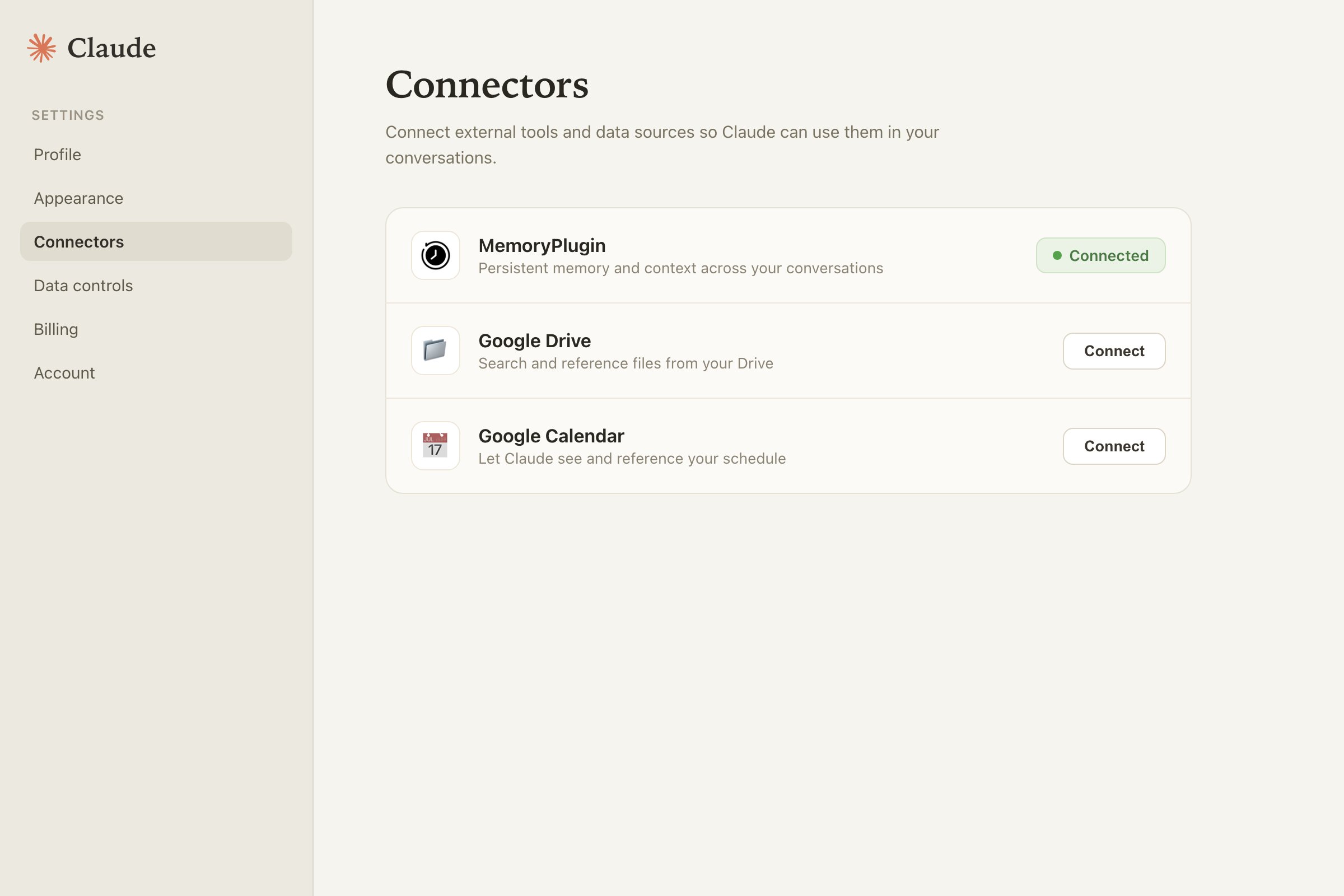
MemoryPlugin listed as a connected connector in Claude's settings.
Browser extension (optional add-on)
Install the browser extension alongside the MCP connection to capture your Claude conversations into chat history. Syncing always runs through the extension; the connector recalls that history but never captures it. On claude.ai the extension also shows the floating button, so you can inject memories and use the Extract memory pill directly in the page.Local MCP server
For Claude Desktop or another MCP client that prefers a local process, configure the local MCP server instead of the remote one.What works here
This walkthrough shows both paths in action: the connector letting Claude call the memory tools itself, and the extension injecting memories and saving them on claude.ai.- Memory recall and save. Over MCP, Claude calls MemoryPlugin’s tools to search your memories and save new ones. No manual injection step.
- Chat history sync. Claude is one of the six platforms the extension can sync directly, or you can upload a Claude export file.
- Extract memory pill. With the extension on claude.ai, select text and click Extract memory to save a snippet.
Limitations
- The remote MCP server handles memory recall and save. Live chat history capture from the browser still needs the extension, so most people run both.
- Whether Claude actually calls the tools each turn is up to Claude. If it forgets, ask it to check MemoryPlugin before answering.
Next steps
Remote MCP Server
Recommended, no install
Local MCP Server
For Claude Desktop and MCP clients
Browser Extension
Add live chat history sync
Chat History
Import and search your conversations