{authorAvatar ?  : author?.[0]?.toUpperCase()}
Written by {author}
Last updated {formatDate(lastUpdated)}
 ## Layout
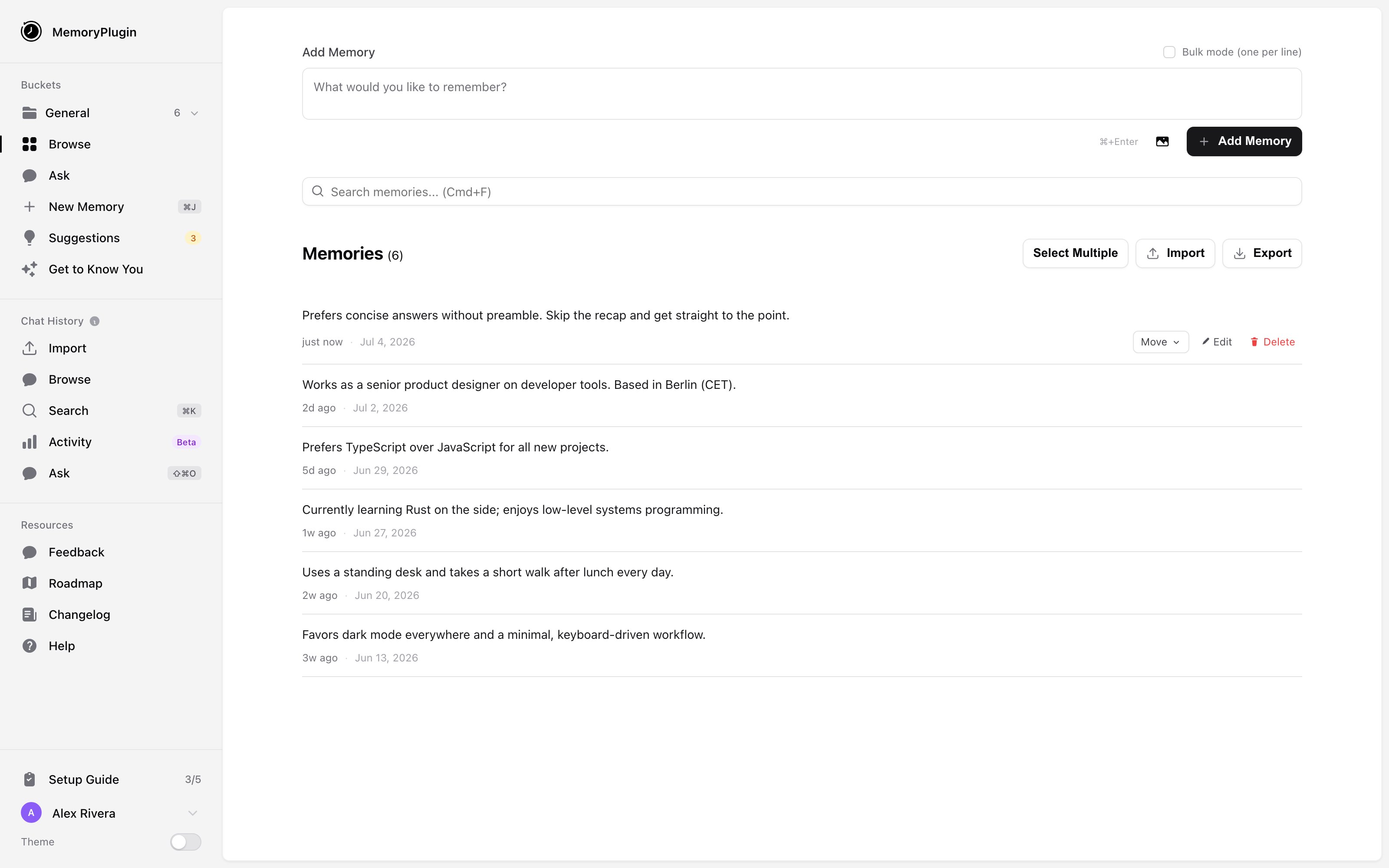
The dashboard uses a fixed left sidebar plus a main content area. The sidebar stays put while you work; the main area shows whichever bucket or feature you have open. A vertical **Ask Docs** tab sits on the right edge of the screen and opens the docs help panel.
## Sidebar
The sidebar starts with the two things you do across everything, then lists your libraries, then Connect and Resources.
### New Memory and Ask
These two sit at the top because they work across memories, files, and chats rather than inside one of them.
* **New Memory** opens the add-memory dialog. Badge: **⌘J**. The dialog has its own bucket picker, so it works whichever bucket you are viewing.
* **Ask** opens the AI query tool. Badge: **⇧⌘O**.
### Memories
* **Bucket selector** at the top. Click it to switch buckets or create a new one. Hold ⌘ (or Ctrl) and it shows a **⌘B** badge.
* **Browse** shows the memories in the selected bucket.
* **Knowledge Graph** (early beta) builds a concept map of a bucket. This item carries a **Pro** badge and only shows on Pro and higher plans.
### Chats
A single **Chats** item opens your chat-history library. Badge: **⌘K**. Browsing, search, and activity stats are view tabs on that page rather than separate sidebar entries.
### Connect
**Connect** is where you hook MemoryPlugin up to your AI tools, and where your **Authentication Token** lives. See [Connect](#connect) below.
### Resources
**Feedback** and **Roadmap** open embedded boards. **Changelog** and **Help** open the help center in a new tab.
### Footer
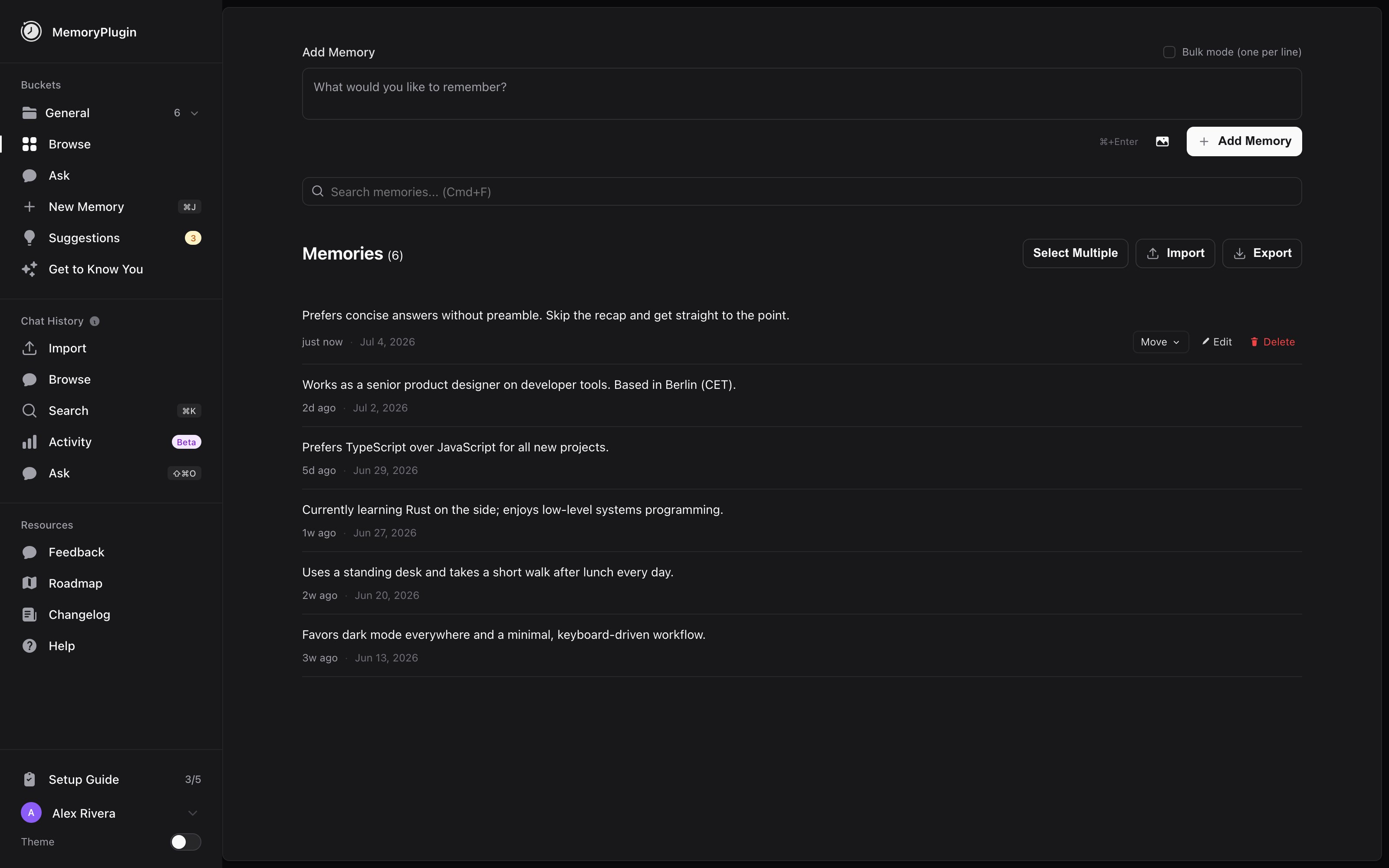
The sidebar footer holds the **Setup Guide** button (with a `{completed}/{total}` step counter, see below), your account button, and a **Theme** row with the dark mode toggle.
## Setup Guide
The **Setup Guide** is a short onboarding checklist. The footer button shows how many steps you have finished as a `{completed}/{total}` counter, and clicking it reopens the checklist. It is separate from **Get to Know You**, which is a conversation that creates memories rather than a checklist.
## Keyboard shortcuts
Badges for these appear in the sidebar while you hold the modifier key.
| Shortcut (Mac / Windows) | Action |
| ------------------------ | -------------------------- |
| **⌘K** / Ctrl+K | Search your chat history |
| **⌘J** / Ctrl+J | Open the Add Memory dialog |
| **⇧⌘O** / Shift+Ctrl+O | Go to the Ask page |
| **⌘B** / Ctrl+B | Open the bucket switcher |
| Escape | Close the open dialog |
Inside the add and edit forms, **⌘↵** (Ctrl+Enter) saves. **⌘F** focuses the memory search box.
## Account menu
Click your account button in the sidebar footer to open the account menu. It shows your email, your current plan, and three actions: **Settings**, **Manage Subscription**, and **Logout**.
## Connect
**Connect** in the sidebar is the one place for hooking your AI tools up to your memory. Open it at [memoryplugin.com/dashboard/connect](https://memoryplugin.com/dashboard/connect). It has three tabs.
## Layout
The dashboard uses a fixed left sidebar plus a main content area. The sidebar stays put while you work; the main area shows whichever bucket or feature you have open. A vertical **Ask Docs** tab sits on the right edge of the screen and opens the docs help panel.
## Sidebar
The sidebar starts with the two things you do across everything, then lists your libraries, then Connect and Resources.
### New Memory and Ask
These two sit at the top because they work across memories, files, and chats rather than inside one of them.
* **New Memory** opens the add-memory dialog. Badge: **⌘J**. The dialog has its own bucket picker, so it works whichever bucket you are viewing.
* **Ask** opens the AI query tool. Badge: **⇧⌘O**.
### Memories
* **Bucket selector** at the top. Click it to switch buckets or create a new one. Hold ⌘ (or Ctrl) and it shows a **⌘B** badge.
* **Browse** shows the memories in the selected bucket.
* **Knowledge Graph** (early beta) builds a concept map of a bucket. This item carries a **Pro** badge and only shows on Pro and higher plans.
### Chats
A single **Chats** item opens your chat-history library. Badge: **⌘K**. Browsing, search, and activity stats are view tabs on that page rather than separate sidebar entries.
### Connect
**Connect** is where you hook MemoryPlugin up to your AI tools, and where your **Authentication Token** lives. See [Connect](#connect) below.
### Resources
**Feedback** and **Roadmap** open embedded boards. **Changelog** and **Help** open the help center in a new tab.
### Footer
The sidebar footer holds the **Setup Guide** button (with a `{completed}/{total}` step counter, see below), your account button, and a **Theme** row with the dark mode toggle.
## Setup Guide
The **Setup Guide** is a short onboarding checklist. The footer button shows how many steps you have finished as a `{completed}/{total}` counter, and clicking it reopens the checklist. It is separate from **Get to Know You**, which is a conversation that creates memories rather than a checklist.
## Keyboard shortcuts
Badges for these appear in the sidebar while you hold the modifier key.
| Shortcut (Mac / Windows) | Action |
| ------------------------ | -------------------------- |
| **⌘K** / Ctrl+K | Search your chat history |
| **⌘J** / Ctrl+J | Open the Add Memory dialog |
| **⇧⌘O** / Shift+Ctrl+O | Go to the Ask page |
| **⌘B** / Ctrl+B | Open the bucket switcher |
| Escape | Close the open dialog |
Inside the add and edit forms, **⌘↵** (Ctrl+Enter) saves. **⌘F** focuses the memory search box.
## Account menu
Click your account button in the sidebar footer to open the account menu. It shows your email, your current plan, and three actions: **Settings**, **Manage Subscription**, and **Logout**.
## Connect
**Connect** in the sidebar is the one place for hooking your AI tools up to your memory. Open it at [memoryplugin.com/dashboard/connect](https://memoryplugin.com/dashboard/connect). It has three tabs.

 * **Move**: send a memory to another bucket from its row.
* **Filter**: once a bucket has Smart Categories, filter the list by category.
For selecting and acting on many memories at once, see [Bulk Operations](/features/bulk-operations). For CSV and JSON import and export, see [Import & Export](/features/import-export).
## Organizing with buckets
Create buckets to keep contexts separate, for example work apart from personal. Open the bucket selector to switch buckets, create a new memory or file bucket, rename, share, reorder, or delete. Your bucket order is kept in sync between the dashboard and the browser extension. See [Memory Buckets](/features/memory-buckets).
For buckets with 30 or more memories, **Smart Memory** groups them into categories with summaries so your AI can load only what is relevant. See [Smart Memory](/features/smart-memory).
## Core features
* **Move**: send a memory to another bucket from its row.
* **Filter**: once a bucket has Smart Categories, filter the list by category.
For selecting and acting on many memories at once, see [Bulk Operations](/features/bulk-operations). For CSV and JSON import and export, see [Import & Export](/features/import-export).
## Organizing with buckets
Create buckets to keep contexts separate, for example work apart from personal. Open the bucket selector to switch buckets, create a new memory or file bucket, rename, share, reorder, or delete. Your bucket order is kept in sync between the dashboard and the browser extension. See [Memory Buckets](/features/memory-buckets).
For buckets with 30 or more memories, **Smart Memory** groups them into categories with summaries so your AI can load only what is relevant. See [Smart Memory](/features/smart-memory).
## Core features